How to Enable Snapchat Dark Mode on iPhone and Android (2026)
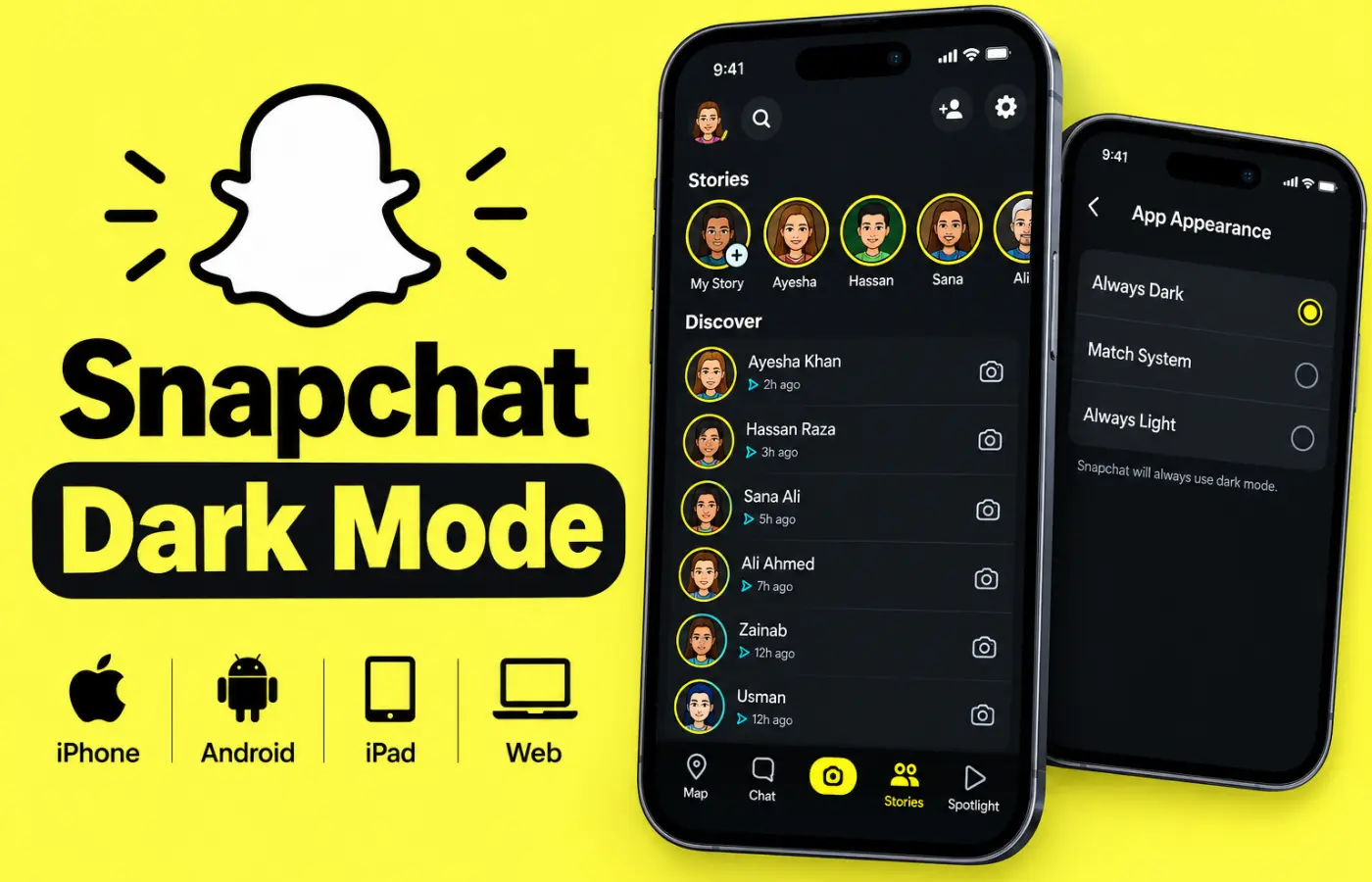
Snapchat Dark Mode is the best feature for users who want to enjoy Snapchat without the bright white screen. It offers a comfortable, dark, and eye-friendly experience on your mobile phone and computer. You can enjoy Snapchat Dark Mode for free on iPhone, Android, iPad, and Snapchat Web.
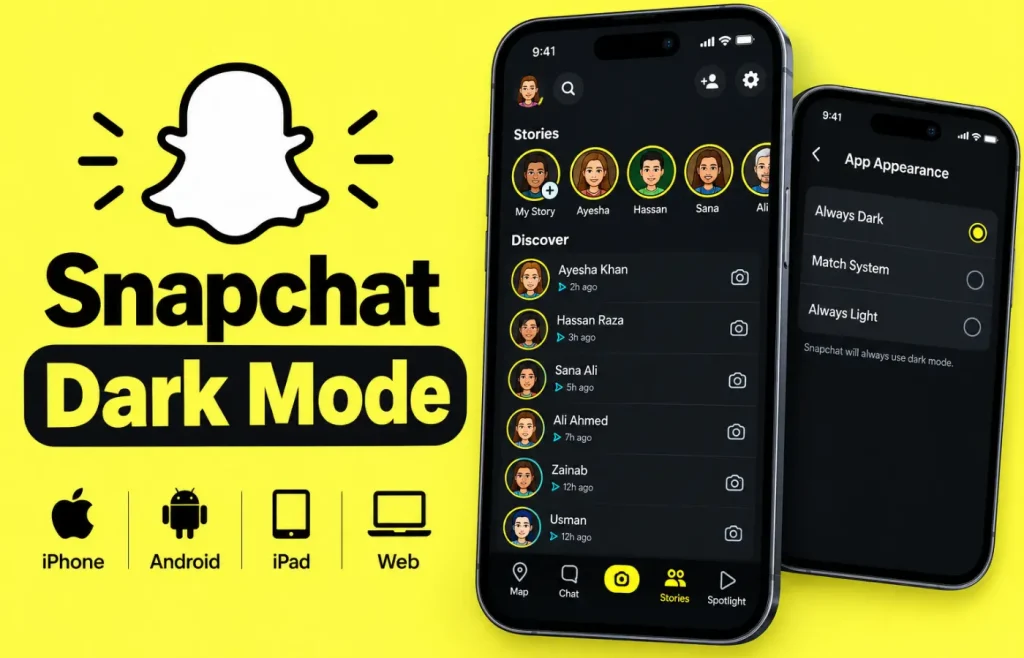
As a built-in theme, it offers a dark grey background with light text for chats, Stories, Spotlight, and settings. This feature is available for all users, and you do not need to pay anything to use it. You can enjoy free and unlimited dark mode on Snapchat with every update. All you need is the latest version of the Snapchat app to access it from anywhere.
This Dark Mode keeps your eyes comfortable at night and in low light. Turn on the latest dark mode setting and enjoy a smooth and comfortable Snapchat experience with every update.
What Is Snapchat Dark Mode?
Snapchat Dark Mode is a built-in theme in the Snapchat app. It changes the bright white background of Snapchat to a dark grey background with light text. This feature does not change how Snapchat works. It only changes how Snapchat looks on your device.
This theme is available for all users, and you do not need to pay anything to use it. You can enjoy it for free on iPhone, Android, iPad, and Snapchat Web. People worldwide trust this feature to enjoy Snapchat at night without paying anything.
This feature was first launched for iPhone users. Android users had to wait longer for this feature, and for some time it was linked to Snapchat+ on Android. That time is now over. Today, it is free for everyone on iPhone and Android. You do not need to pay anything to use Dark Mode in 2026.
What Does Snapchat Dark Mode Actually Change?
Snapchat Dark Mode changes the look of the Snapchat app interface. That is the main work of this feature, and it is very easy to understand. Snapchat Dark Theme does not change your account, your friends, or your Snaps. It only changes the colours of the app on your own device.
When you turn on night mode, you will see the change in your chat list, inside chats, on Stories, on Spotlight, on your profile page, and in Settings. All the white areas turn dark, and the text turns light so you can read it easily. The camera screen already looks dark, so you will not feel a big change on the camera screen.
This dark theme delivers a calm and comfortable viewing experience with light text on a dark background. Compared to the bright white theme, night Mode stands out as offering the best experience at night.
How to Turn On Snapchat Dark Mode on iPhone
Snapchat Dark Mode on iPhone is very easy to turn on. Follow these steps on iPhone by following these simple steps.
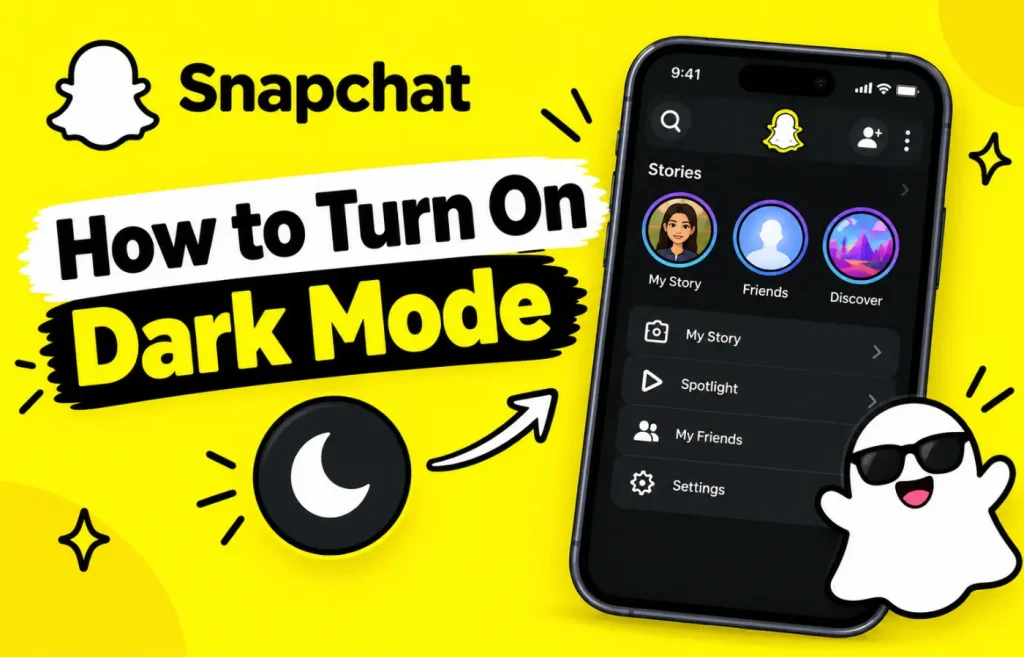
Snapchat will switch to dark mode right away. If you want Snapchat to follow your iPhone, choose Match System in the same menu. This is the best way to enjoy Snapchat night Mode on iPhone for free.
How to Turn On Snapchat Dark Mode on Android
Dark Mode on Android is also very easy to turn on. You can turn on this feature on Android by following these simple steps.
Once the app restarts, Snapchat will be in dark mode. This is the best way to enjoy Dark Mode on Android for free.
How to Turn On Snapchat Dark Mode on Snapchat Web
Snapchat Dark Mode on Snapchat Web is also very easy to use. You can turn on Dark Mode on Snapchat Web by following these simple steps.
The change happens right away on Snapchat Web. You do not need to restart anything to enjoy the Snapchat dark theme on the web.
How to Turn On Snapchat Dark Mode on iPad and Tablets
Dark Mode on iPad and tablets is very easy to turn on. You can turn on the Snapchat app appearance on iPad and tablets with the same steps as on a phone. Open Snapchat, tap your profile icon, tap the gear icon, tap App Appearance, and choose Always Dark. The only thing to check is that your tablet is running a recent version of iOS or Android to get the newest Snapchat app. On a very old tablet, the setting may not appear until the system and the app are both updated.
Snapchat dark option on iPad and tablets offers the same comfortable dark theme as on a phone. You can enjoy night mode on every device with the same simple setting.
Snapchat Dark Mode Settings
Snapchat Dark Mode settings are very easy to understand. App Appearance gives you three main choices, and these choices are explained below.
Match System means Snapchat follows your phone. If your phone is in dark mode, Snapchat is dark. If your phone is in light mode, Snapchat is light. Always Dark means Snapchat stays dark all the time, even if your phone is in light mode. Always Light means Snapchat stays light all the time. This is the setting that turns dark mode off.
Older versions of the app use slightly different names for the same choices: System Dark instead of Always Dark, and System Light instead of Always Light. If you see Apply Theme after you pick an option, tap it to confirm the change. This setting is super-easy, and you can find it easily without frustration.
Does Snapchat Automatically Follow Your Phone’s Dark Mode?
Yes, Snapchat automatically follows your phone’s dark mode, but only if you choose Match System. Snapchat does not follow your phone by default if you have picked Always Dark or Always Light. Those two options override your phone’s setting on purpose.
The Match System is very useful if you want Snapchat to follow your phone. You can select Match System in App Appearance, and Snapchat will follow your phone’s light and dark setting automatically. This option makes the Snapchat Dark Theme unique because you do not need to change the setting again and again.
How to Turn Off Snapchat Dark Mode
Turning dark mode off is very easy. You can turn off this feature by following these simple steps.
Snapchat will go back to its normal bright look right away. On Snapchat Web, click your Bitmoji, click Theme and choose Always Light.
Why Is App Appearance Missing or Dark Mode Not Working?
Sometimes users may encounter problems with Snapchat Dark Mode not working. Below are the most common problems and their solutions.
Update Snapchat
An old version of Snapchat may not have App Appearance at all. Open the App Store on iPhone or the Google Play Store on Android, search for Snapchat, and install any update that is available. This fixes the problem for most people.
Close and Reopen the App
After you update, close Snapchat completely. Do not just go back to your home screen. Swipe Snapchat away from your recent apps, then open it again and check Settings.
Restart Your Phone
If the setting is still missing, restart your phone. A restart clears temporary glitches that can stop a new setting from showing up.
Clear Snapchat Cache
You can also clear the cache inside Snapchat. Go to Settings in Snapchat and find Clear Cache. Clearing the cache does not delete your Snaps, chats, or Memories. It only removes temporary files. Do not choose Clear Data on Android unless you are ready to be logged out, because that is a different option.
Confirm the Theme Is Still Selected
Sometimes the problem is not that the setting is missing, but that the theme has changed back without you noticing. Open Settings, App Appearance, and check what is selected. If Match System is selected and your phone is in light mode, Snapchat will look light even though nothing is broken.
Reinstall Snapchat as a Last Resort
If nothing else works, delete Snapchat and install it again from the official app store. Make sure you know your login details first. A fresh install gives you the newest version and a clean set of settings.
Why Does Snapchat Keep Reverting to Light Mode?
If your Snapchat keeps going back to light mode, the most likely cause is Match System. When Match System is on, Snapchat follows your phone. So if your phone switches to light mode in the morning, Snapchat will switch too. That is not a bug. It is the setting doing its job.
To stop this, open Settings, App Appearance, and choose Always Dark instead of Match System. Also check that you have not set your phone to switch themes on a schedule that you forgot about. If the problem happens even on Always Dark, update Snapchat, restart the app, and check the theme again after the update.
Does Dark Mode Affect Snapchat Planets?
No, dark mode does not affect Snapchat Planets. Snapchat Planets, also called the Friend Solar System, rank your top eight Best Friends from Mercury to Neptune based on how often you snap and chat with them. Dark mode only changes the colours of the app. It does not change your Best Friends list, your planet ranking, your streaks, or your Snap Score.
If you want to learn what each planet means, read the Snapchat Planets guide. That guide explains the full planet order, what each planet means, and how to check your planet on a friend’s profile.
How to Turn On Snapchat Dark Mode in 30 Seconds
Snapchat Dark Mode is very easy to turn on. You can turn on this feature in 30 seconds by following these simple steps. Open Snapchat, tap your profile icon, tap the gear icon, tap App Appearance, and choose Always Dark. If Snapchat asks you to confirm, tap Apply Theme or Restart Now. That is all you need to do to enjoy Dark Mode on Snapchat.
If you want Snapchat to follow your phone, choose Match System in the same menu. Snapchat will then go dark when your phone is dark, and light when your phone is light. This is the easiest way to enjoy Dark Mode without changing the setting again and again.
Conclusion
Snapchat Dark Mode offers comfortable viewing on iPhone, Android, iPad, and Snapchat Web. It features a user-friendly setting and provides a dark theme for the best viewing experience at night. Turn on Snapchat Dark Mode today and enjoy comfortable Snapchat anytime, anywhere. It is the perfect choice for those who love a comfortable, dark, and eye-friendly Snapchat experience.
Turn on Dark Mode for free and enjoy chats, Stories, and Spotlight in a dark theme. Enjoy free dark mode with Match System, Always Dark, and Always Light options on iPhone, Android, iPad, and Web.